On this page
- Install the plugin
- Export your redirects from WordPress
- A sample list to practise with
- Import your WordPress redirects into EmDash
- Why are some redirects skipped?
- Add the redirects
- Remove an import again
- Your old post addresses (permalinks)
- Add a redirect by hand
- Check that a redirect works
- What it does not do
- If something goes wrong
Moving the whole site? Start with How to move a WordPress site to EmDash.
A redirect is a note that sends visitors from an old address to a new one. A WordPress site collects many of them over the years. Some are links people saved, and some are pages Google still lists. If they stop working after the move, those visitors see “page not found”. The free SEO & Schema Markup plugin reads the list your WordPress plugin exports and adds the redirects to EmDash.
Coming from WordPress?
This replaces the redirect part of Redirection, Yoast SEO Premium and Rank Math.
- EmDash has redirects built in. The plugin adds the import, and a tab to manage them next to your other SEO settings.
- EmDash has no regex redirects. Exact addresses and “everything in a folder” are converted. Other patterns are listed for you to add by hand.
- EmDash doesn’t support redirects to another website, or old addresses with a
?in them. - When you rename a page in EmDash, it adds the redirect from the old address itself.
Install the plugin
The plugin is free, and you don’t need an account. It is in the EmDash registry: install it from Registry in your EmDash admin, if your site has sandboxed plugins (SEO & Schema Markup on the registry). Or ask whoever looks after your site’s code to install it from npm and add it to the site’s code. It needs EmDash 1.2.0 or newer.
npm install @moorage/plugin-seo// astro.config.mjs
import seo from "@moorage/plugin-seo";
import { defineConfig } from "astro/config";
import { defineConfig } from "astro/config";
import emdash from "emdash/astro";
export default defineConfig({
integrations: [emdash({ plugins: [seo] })],
});Everything after this happens in the admin. You need to be an admin of the site.
Export your redirects from WordPress
The plugin reads a CSV file: a plain text list with one redirect per line and commas between the parts. We followed the Redirection steps on Redirection 5.10.1 on 2 November 2026. The Yoast and Rank Math steps come from their help pages.
Redirection. Go to Tools, then Redirection, and open the Export tab. Tick Include in export on Redirects, choose CSV in Format, then click View or Download. The file starts with this line, with each word in quotes:
source,target,regex,code,type,hits,title,statusYoast SEO Premium. Yoast’s help pages put the redirects export under Yoast SEO, Tools, Import and Export.
Rank Math. Rank Math’s help pages say the CSV export needs Rank Math PRO. It is under Rank Math SEO, Redirections, Import & Export, then Export CSV.
.htaccess. Lines such as Redirect 301 /old-page/ /new-page are not read. Change each one to the two addresses with a comma between them, like /old-page/,/new-page.
Open the file in a text editor, not a spreadsheet, and copy everything in it.
A sample list to practise with
You can try the import with this list first. It has the same shape as a Redirection export, for an imaginary bakery. The new addresses are the ones EmDash’s Blog template uses: /pages/… for pages and /posts/… for posts. Change each target to the new address before you import. WordPress exports keep the old ones.
source,target,regex,code,type,hits,title,status
/about-us/,/pages/about,0,301,url,112,,active
/2019/05/our-first-sourdough/,/posts/our-first-sourdough,0,301,url,48,,active
^/news/(.*)$,/posts/$1,1,301,url,230,,active
^/product/(\d+)-(.*)$,/pages/menu,1,301,url,17,,active
/about-us/,/pages/team,0,301,url,0,,active
/christmas-orders/,/pages/order,0,302,url,5,,disabled
/price-list.pdf,https://drive.google.com/file/d/1abc/view,0,301,url,9,,active
/?page_id=42,/pages/contact,0,301,url,3,,active
/feed/,/rss.xml,0,301,url,61,,active
The plugin reads source (the old address), target (where visitors go now), regex (1 for a pattern), code (301 permanent, 302 temporary) and status. It ignores the other columns.
Import your WordPress redirects into EmDash
- Open SEO in the admin sidebar, under Marketing, then its Redirects tab. Not Redirects under Manage: that is EmDash’s own screen, for patterns.
- You should see the redirects your site already has. Click Import from WordPress.
- Paste your list into the box labelled Your list, one redirect per line.
- Click Check list. Nothing is added yet.
You should now see a count. For the sample list it says “4 ready, 5 skipped”, and under it “Read as Redirection. Nothing has been added yet. Existing redirects are never changed.”
Why are some redirects skipped?
Below the count is a table of the skipped rows, with the reason for each. Row 1 is the first line of your list. For the sample list:
- Row 5,
^/product/(\d+)-(.*)$: “Uses a pattern. Add it by hand under Manage > Redirects.” It picks out part of an address, which EmDash can’t do. - Row 6,
/about-us/: “Listed twice.” The first one wins, so the plugin never guesses. - Row 7,
/christmas-orders/: “Switched off in the export.” It was disabled in WordPress. - Row 8,
/price-list.pdf: “Points to another website.” EmDash redirects only within your site. - Row 9,
/?page_id=42: “Addresses with a ? are not supported.” EmDash matches only the part before any?.
Row 4 is a pattern too, but a safe one: “everything in the news folder”. It becomes /news/[...rest] to /posts/[...rest] and is ready.
Add the redirects
- Click Add 4 redirects. The number matches your list.
- A box asks “Add 4 redirects?” and says you can remove them all again afterwards. Click Add.
You should see “4 redirects added from your list”. It says they are labelled “Imported” with the date and time. They appear at the top of the list.
The plugin’s notes say a long list is added a few rows at a time, in the background, and you can leave the page.
Remove an import again
If you pasted the wrong list, act while the result is still on screen. Click Remove the 4 just added, then Remove. Only the redirects this import added are removed. A few go at once; the rest go in the background, a few each minute, and a bar shows how far it has got. Click Remove more now to go faster.
Do this before you click Import another list. After that, the remove button for the old import is gone, and you can only remove those redirects one at a time.
Your old post addresses (permalinks)
WordPress often puts the date in a post’s address, like /2019/05/our-first-sourdough/. EmDash’s Blog template puts posts at /posts/our-first-sourdough. One pattern rule covers every post, so you don’t need a line for each.
- Click Redirects in the sidebar, under Manage.
- Click New Redirect.
- Type
/[year]/[month]/[slug]in Source path. - Type
/posts/[slug]in Destination path. - Click Create.
[slug] stands for one part of an address, and the destination reuses it. On our test site /2019/05/our-first-sourdough then went to /posts/our-first-sourdough. EmDash’s Migrate from WordPress page covers the rest of the move.
Add a redirect by hand
Use this for skipped rows, or for any new redirect.
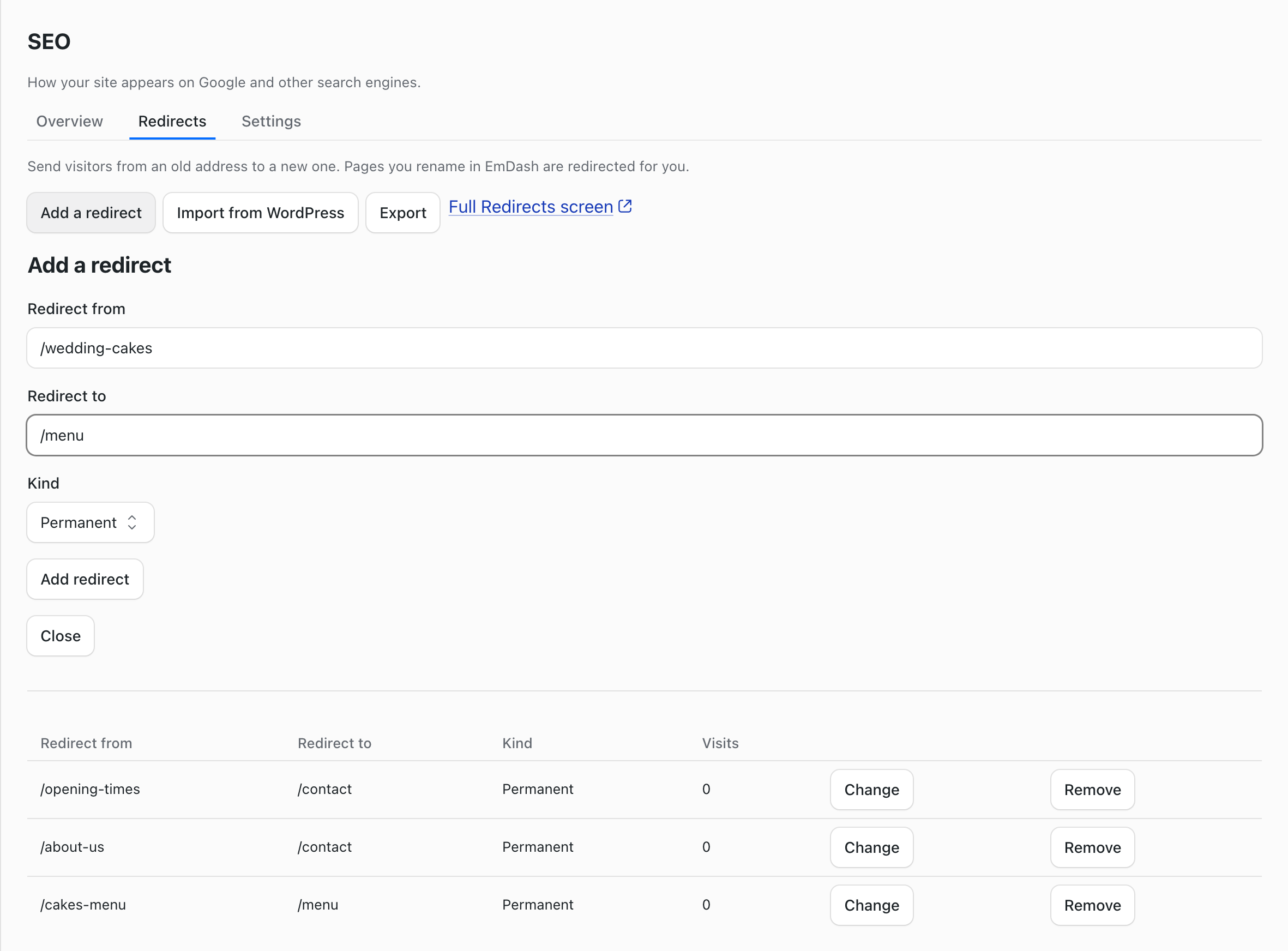
- On the Redirects tab, click Add a redirect.
- Type the old address in Redirect from, for example
/christmas-orders/. - Type the new address in Redirect to, for example
/pages/order. - Choose the Kind: Permanent, Temporary, the old address will come back, or Page removed on purpose, no new address.
- Click Add redirect.
You should see “Redirect added. /christmas-orders/ now goes to /pages/order.”
For other patterns, use EmDash’s own Redirects page, under Manage in the sidebar. The SEO tab links to it as Full Redirects screen. For row 5, click New Redirect, type /product/[slug] in Source path and /pages/menu in Destination path, then click Create. EmDash can reuse [slug] in the destination, but here the old address has a number in front of the name, so every old product page goes to the menu.
That page also has a 404 Errors tab. It lists addresses visitors asked for that don’t exist. Check it every few days after the move, and create a redirect for any that matter.
Check that a redirect works
- Open a new browser tab.
- Type your site’s address followed by an old address, such as
/about-us/, and press Enter.
The address bar should change to the new address, here /pages/about, and show that page. If you see “page not found”, the redirect works but the new page is missing. Change the redirect, or publish the page. A developer can run curl -sI https://your-site/about-us/ instead: it shows 301 and the new address after location.
To find links on your own pages that lead nowhere, see How to find and fix broken links on an EmDash site. Once the redirects are in, How to add schema markup to an EmDash site covers the rest of the same plugin.
What it does not do
- It converts only the two safe regex shapes. Rewrite the others as EmDash patterns by hand.
- It reads CSV and plain lists only, not JSON files or
.htaccesslines. - Its code reads up to 2,000 rows at a time. Paste the rest as a second list.
- It doesn’t change the links inside your pages. The redirect catches visitors at the old address instead.
- Old addresses that end in a file type, such as
/sitemap_index.xmlor/wp-content/uploads/…/photo.jpg, are skipped, with the reason “Addresses ending in a file type, like .xml or .jpg, are not redirected by EmDash”: EmDash treats them as file requests and never runs a redirect for them. Submit your new sitemap in Google Search Console instead, and move your pictures before you switch domains. - It has run on a real Redirection export, but not yet on Yoast or Rank Math ones. If yours reads wrongly, send a few rows to hello@moorage.dev.
If something goes wrong
- “Unknown redirect type” on every row. You pasted
.htaccesslines. Change each line toold address,new address. - “Nothing in this list can be added.” Read the Why column. If every row says “Already exists”, the redirects are already there, often from an earlier import.
- “Already exists” or “Conflicts with an existing redirect”. Your site already has a redirect from that old address. Existing redirects are never changed; change it by hand in the list if you need to.
- Some redirects aren’t in the list. The tab shows the newest 20. The rest are on the Full Redirects screen. A long list is added a few rows at a time, so open the tab again later to see the rest.
Stuck on a step? Email hello@moorage.dev.
What should we make next?
Tell us the job you would like a plugin to do. We read every answer and use your email only to reply to it; release emails come only if you tick the box.