On this page
EmDash already writes a page’s title, description and sitemap entry. What it leaves out is a full description of who runs the site and what each page is. Search engines read that description in a format called JSON-LD. The SEO & Schema Markup plugin adds it. It’s free, and you don’t need an account.
Coming from WordPress?
This replaces the schema part of Yoast SEO or Rank Math.
- EmDash already writes titles, descriptions and the sitemap. The plugin adds the schema description on top.
- Every page gets one connected description, in a single JSON-LD script.
- There is no Event or Product type yet. You paste your own into a field on the page.
- Until you add an address, a business is described as an ordinary organisation, because Google needs an address first.
Install the plugin
Install it from Registry in your EmDash admin, where it is listed as SEO & Schema Markup. Installing from the registry needs a site with sandboxed plugins, which on Cloudflare means Workers Paid. Or ask whoever looks after your site’s code to install it from npm. It needs EmDash 1.2.0 or newer.
npm install @moorage/plugin-seo// astro.config.mjs
import seo from "@moorage/plugin-seo";
import { defineConfig } from "astro/config";
import emdash from "emdash/astro";
export default defineConfig({
integrations: [emdash({ plugins: [seo] })],
});Listed under plugins, it runs in your site’s own process, which works on any EmDash site. If your site has a sandbox runner, you can list it under sandboxed instead. In code that is emdash({ sandboxed: [seo] }). On Cloudflare that means Workers Paid with the Worker Loader binding.
Say who the site is for
Open SEO in the admin sidebar, under Marketing. The plugin is already working. It describes the site as an organisation named after the site. It also guesses what each content type is from its name, so a collection called “posts” is treated as blog posts.
One answer makes all of this more accurate. The Overview tab asks you to “Tell Google who this site is for”. You can answer there or in the Settings tab.
- Choose a local business, a company or a person.
- For a local business, also pick the kind of business.
- Type the name.
- Press Save.
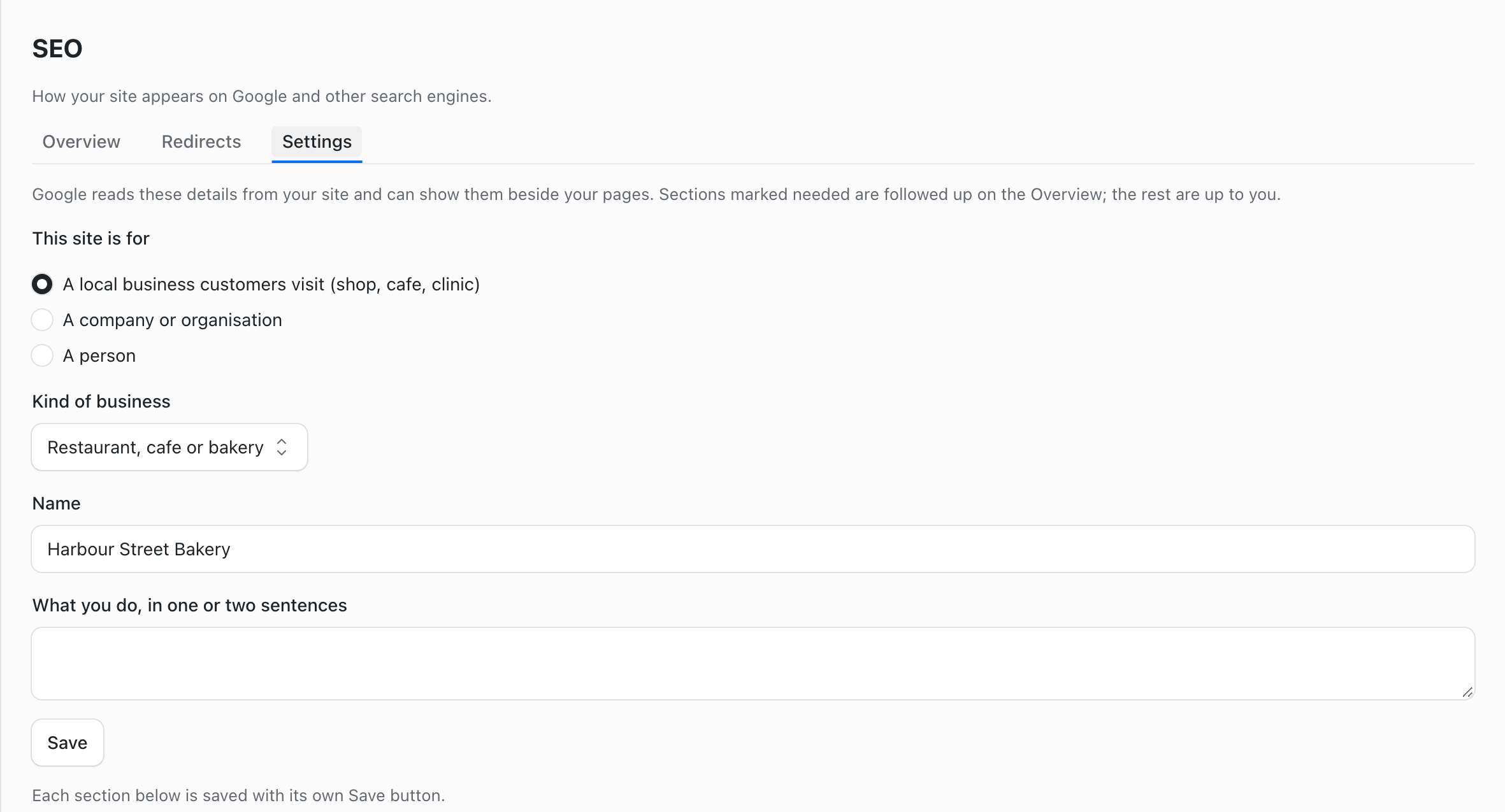
What does Google still need?
Back on the Overview tab, “Your details” lists what is missing for your kind of site. For a local business that is an address, opening hours and a phone number. Add the address first.
- Open the Settings tab.
- Find “Address and phone”. It is open already when Google still needs it.
- Fill in the street address, town or city, postcode, country code and phone.
- Press Save address and phone.
Until there is an address, the plugin describes the business as an ordinary organisation (Organization). Google requires an address before it treats a site as a local business. Once the address is saved, the markup names the kind of business you chose. For a bakery that is FoodEstablishment, one of schema.org’s local business types.
Add your own schema markup to one page
Every page now carries one connected description. It covers the organisation or person, the website, the page, its breadcrumbs and its main image. Blog posts also get the author and dates.
The plugin has no Event or Product type of its own yet. For those, add a field to the content type.
- Open Content Types and choose the type, for example Blog posts.
- Press Add Field.
- Choose JSON.
- Give it any label, and set its slug to
json_ld. - Press Add Field.
- Open the entry and paste a schema.org object into the new field.
- Press Publish changes, then Publish changes again in the box that asks.
{
  "@context": "https://schema.org",
  "@type": "Event",
  "name": "Sourdough class",
  "startDate": "2026-11-14T10:00",
  "location": {
    "@type": "Place",
    "name": "Harbour Street Bakery",
    "address": "12 Harbour Street, Whitby"
  }
}
It joins the page’s one description, so the page still has a single JSON-LD script.
EmDash on its own writes one small JSON-LD script on each page: WebSite, or BlogPosting on a blog post. The plugin takes its place, so there is nothing to remove. If your theme adds a JSON-LD script of its own, take it out, so each page keeps one.
Check the result
The panel shows the page as last published, so publish your changes first.
- Open a published page in the editor.
- Open the Google preview panel in the sidebar.
- Press View the markup to see exactly what was written.
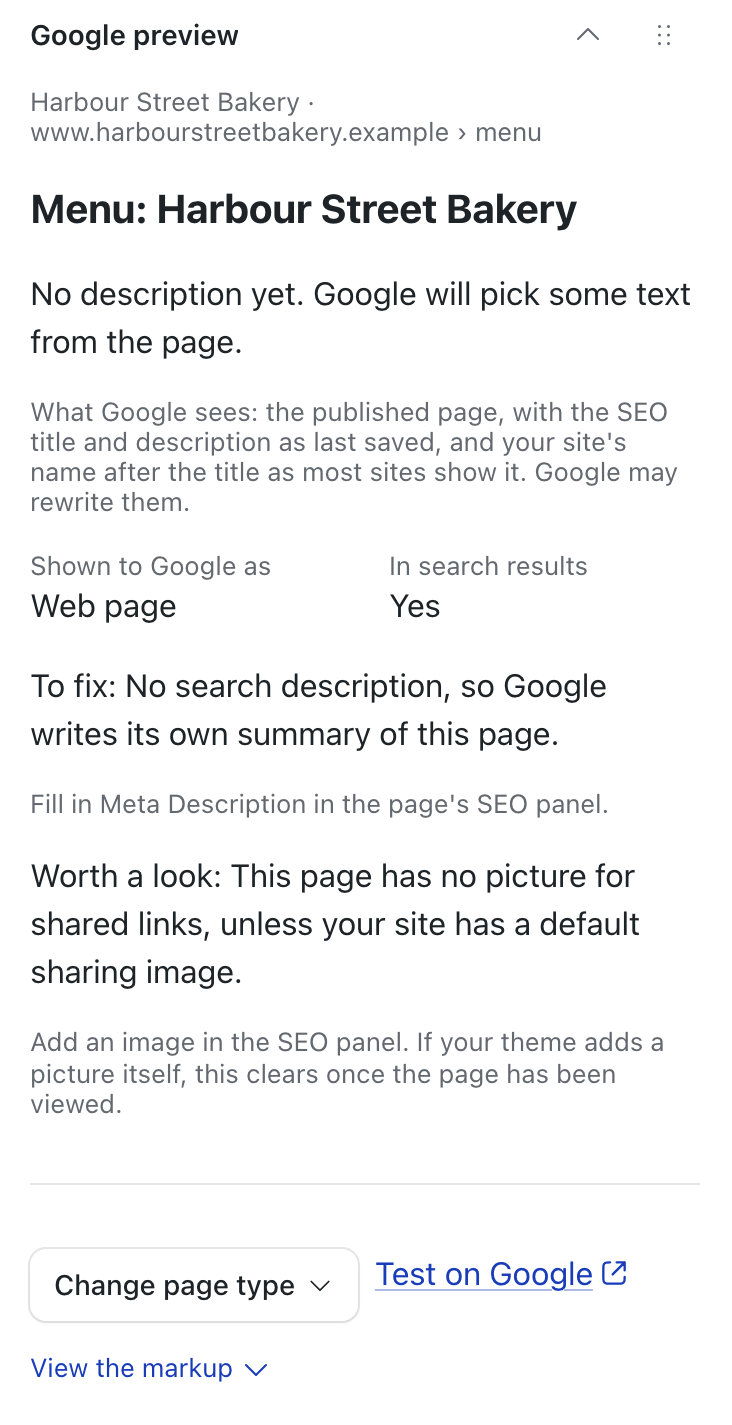
This is the start of what View the markup showed for a post on a test bakery site, once its address was saved:
{
  "@context": "https://schema.org",
  "@graph": [
    {
      "@type": "FoodEstablishment",
      "@id": "https://example.com/#organization",
      "name": "Harbour Street Bakery",
      "telephone": "+44 1947 600000",
      "address": {
        "@type": "PostalAddress",
        "streetAddress": "12 Harbour Street",
        "addressLocality": "Whitby",
        "postalCode": "YO21 3PU",
        "addressCountry": "GB"
      }
    }
  ]
}
The rest of the graph follows in the same script: WebSite, WebPage, BreadcrumbList, BlogPosting and its picture.
If you are an admin, Test on Google opens Google’s Rich Results Test for that page. It needs the page to be live on the internet.
What it does not do
- It has no Event or Product type of its own. Paste your own into a
json_ldfield, as above. - It does not test your markup. Use Test on Google once the page is live.
If something goes wrong
The markup shows old details. The panel describes the page as it was last published. Publish your changes, then look again.
Test on Google finds nothing. The page must be live on the internet before Google can read it.
Every setting is on the SEO & Schema Markup plugin page. Moving from WordPress? See How to import your WordPress redirects into EmDash. If several people edit your pages, see How to set up an EmDash approval workflow.
Stuck on a step? Email hello@moorage.dev.
What should we make next?
Tell us the job you would like a plugin to do. We read every answer and use your email only to reply to it; release emails come only if you tick the box.