On this page
Say a helper updates the bakery’s summer menu and types the wrong price. With approval on, that price never reaches the site. The free Content Approval plugin holds the page and asks you first. You read the change in plain words, then approve it or send it back with a note.
Coming from WordPress?
This does the job of PublishPress (Planner, Checklists and Revisions), Oasis Workflow, Edit Flow and the “Pending Review” status.
- Writers don’t press “Submit for Review”. They press Publish as usual, and the plugin turns it into a request.
- The approver sees what changed in words, for example
Text: "tart." becomes "tart and pavlova.". - An approval belongs to one version. Any change saved after it needs a new OK.
- There are no custom statuses, editorial calendar, comment threads or chains of approvers.
Install the plugin
Content Approval is on the EmDash registry and on npm. To install it from the registry, open Registry in your EmDash admin and choose Content Approval; the site needs a sandbox runner, which on Cloudflare means Workers Paid. Installed from the registry, its emails need EmDash 1.4.0 or newer. To add it in code instead, a developer adds it once. It needs EmDash 1.3.0 or newer.
Ask whoever looks after your site’s code to run this:
npm install @moorage/plugin-approvalsAnd to add it to astro.config.mjs:
// astro.config.mjs
import approvals from "@moorage/plugin-approvals";
import { defineConfig } from "astro/config";
import emdash from "emdash/astro";

export default defineConfig({
  integrations: [emdash({ plugins: [approvals] })],
});
Listed under plugins, it runs in your site’s own process, which works on any EmDash site. If your site has a sandbox runner, it can go under sandboxed instead. Everything after this is done in the admin.
Who approves and who waits
EmDash gives each person a role. To set it, open Users, open the person, pick a Role and press Save Changes. To add someone new, press Invite User.
- Admin (full access): approves other people’s pages.
- Editor (can manage all content) and Author (can publish own content): can press Publish, but the page waits for an admin.
- Contributor (can create content): can’t publish at all. They ask for approval from the Approvals page.
Nobody can approve their own request.
For agencies. Make your clients Editors and your team Admins: every client Publish then waits for you. If a client must stay an Admin, choose I need someone else’s OK before publishing in the settings below, so admins wait too. Each site has its own Approvals page; with several sites, rely on the emails.
Turn on the EmDash approval workflow
- In the sidebar, under Plugins, open Content, then Approvals.
- While approval is off, the page opens on its Settings tab. You should see “Approval is off until you save these settings”.
- Under Which content needs approval, tick the content types, for example Pages and Blog posts.
- Under Who needs approval, leave Others need my OK before publishing.
- Leave AI tools connected to your site always need a person’s OK switched on.
- Press Save.
You should now see “Saved. Publishing now asks for approval where you chose.”
Nothing is held until you press Save, not even work from AI tools. If admins should wait too, pick I need someone else’s OK before publishing in step 4. The Settings tab says an editor or another admin then approves. It also says pages already scheduled will need approval before they go live.
What the writer sees
The writer works as usual. In our test, Sam, an Editor, wrote a post called “Our summer menu”.
- Press Publish now in the editor. On a page that is already live, the button says Publish changes.
- Press Publish now again in the box that asks “Publish now?”. (On a live page, the box asks “Publish changes?”.)
A message pops up titled “Failed to publish”. That title comes from EmDash, and the plugin can’t change it. Read the line under it: “Sent for approval. Not live yet. Ellen Marsh has been asked; you’ll get an email when they decide.” Nothing failed. The post stays a draft.
On the right of the editor, the Approval panel now says “Waiting for approval”. It has a box for a note to the approver.
Contributors don’t have a Publish button. They open Approvals, find the draft under Your drafts and press Ask for approval.
How to approve a page before it goes live
The approver finds the request on the dashboard, in an Approvals box called “Waiting for you”. It is also on the Waiting tab of the Approvals page. If your site can send email, they get one too.
- Open Approvals. On the Waiting tab, press Review next to the page.
- Read What changes when this goes live.
For a new page you see “New page: not live before.”, then all its words. For a page that is already live you see only the change, for example Text: "tart." becomes "tart and pavlova.".
A yellow box, “Worth a look before approving”, may list “No search description. No sharing picture.” It is a reminder and doesn’t stop you.
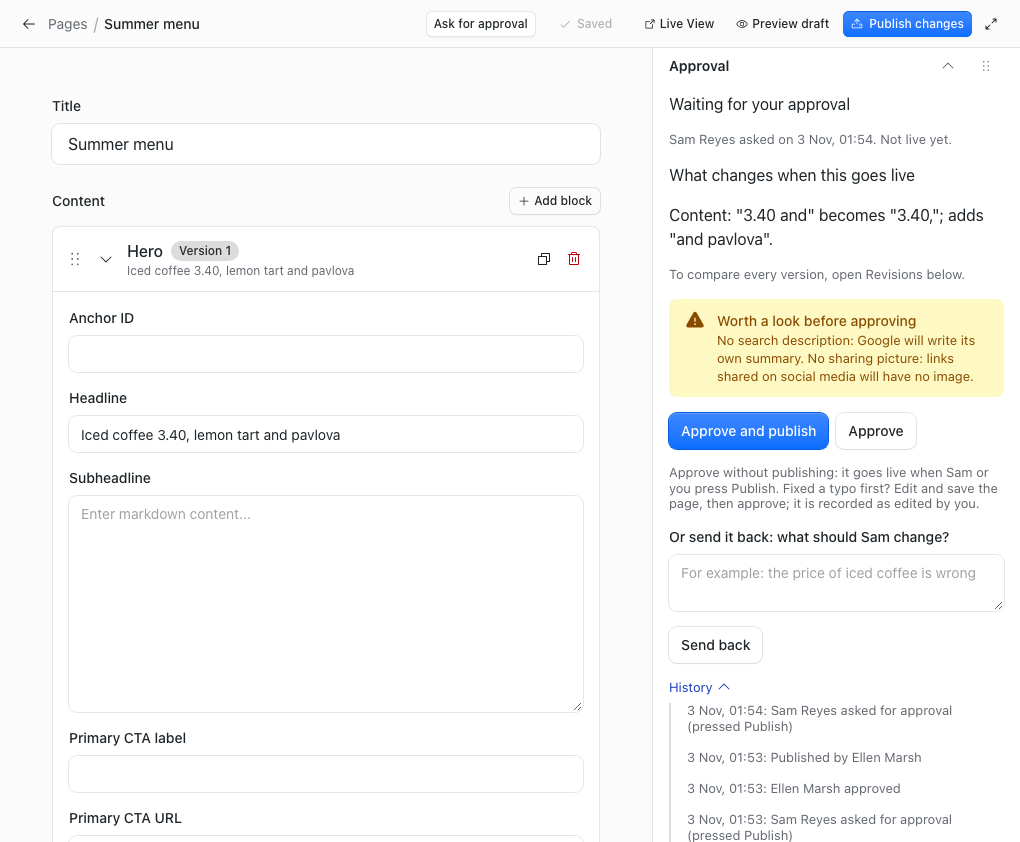
Then choose one of three:
- Approve and publish: it goes live at once. You should see “Approved and published. It’s live now. Sam has been told.”
- Approve: the writer publishes it when ready, or schedules it. You should see “Approved. Sam has been told.”
- Send back: write what to change in the box under “Or send it back”, then press Send back.
After Approve and publish or Approve, the Approvals page shows a short confirmation with the page’s name and Back to the list. Press it to go back to the requests. Sam’s email follows within about a minute (see “The emails” below).
Right after Approve and publish, the page’s Approval panel and the History tab may show the request as approved for a moment. Once EmDash has finished publishing, they show it as published, and its history adds “Published by Ellen Marsh”.
You can do the same from the Approval panel in the page’s editor. The plugin’s notes say you can also fix a typo yourself, save, then approve, and the history records your edit.
When a page is sent back
We sent “Our summer menu” back with the note “Iced coffee is £3.40 from Monday.”
The writer sees it on the Sent back tab of Approvals, and gets an email. In the editor, the Approval panel shows “Sent back by Ellen Marsh” and the note. Under it: “Make the changes, save, then press Publish again.”
- Make the change in the editor.
- Press Save.
- Press Publish changes (Publish now on a page that is not live yet).
The page goes back to the approver as a new request. When we pressed Approve and publish, the post went live with the new price.
The record of what was approved
Each approval saves a text copy of the version that was approved. Open the History tab on the Approvals page. It shows who approved each page and when, such as “Approved by Ellen Marsh, 19 Oct, 13:39”, or “Published … · approved by Ellen Marsh” when it went live at once. Press Show the approved text to read the words exactly as approved. If a page is approved more than once, the tab shows the latest copy.
The emails
Approvers get an email when someone asks, at most once a day for each page. The writer gets one when the approver decides. The plugin says approvers also get one reminder after two days if nobody has decided. Without email, requests still show on the dashboard and the Approvals page.
Emails need an email service set up in EmDash and EmDash’s scheduled tasks running: on Cloudflare, a Cron Trigger every minute, which the EmDash templates have. Installed from the registry on Cloudflare, they need EmDash 1.4.0 or newer.
The emails don’t go out during the click. A background task that runs every minute sends them, so they usually arrive about a minute after someone asks or decides. On a site with many approvers, a few go out each minute until everyone has theirs. An email that fails is tried twice more, five minutes apart.
What it does not do
The Settings tab lists what approval can’t hold. These go live as soon as they are saved:
- The SEO panel, categories, tags and bylines of a page that is already live. EmDash saves those straight to the live page. For what the SEO panel does, see How to add schema markup to an EmDash site.
- Taking a page off the site (Unpublish).
The plugin’s notes add that a content type with no drafts is named there too, because every save goes live at once.
There are no discussion threads, mentions or inline comments. There are no chains of approvers, named approvers or approval by several people. Approvers edit the page in the editor, not inside the Approval panel.
If something goes wrong
The writer sees “Failed to publish”. Read the line under it. If it starts “Sent for approval. Not live yet.”, it worked: the page is waiting for an OK.
Pages go live without approval. Open Approvals, then Settings. If you see “Approval is off until you save these settings”, tick the content types and press Save.
A Contributor presses Ask for approval in the editor and sees “Plugin action failed”. On EmDash 1.3.1 and 1.4.0 that button shows for Contributors but doesn’t work for them. They should open Approvals and press Ask for approval under Your drafts.
You are the only person on the site. Nobody can approve their own page, so invite a second person. The plugin also offers Approve without review on each request, for emergencies. You give a reason, and the plugin says the other approvers are emailed and the page’s history keeps a record.
Stuck on a step? Email hello@moorage.dev.
What should we make next?
Tell us the job you would like a plugin to do. We read every answer and use your email only to reply to it; release emails come only if you tick the box.