On this page
The plugin is called Site Health & Broken Links. It’s free, and you don’t need an account.
Coming from WordPress?
This does the job of Broken Link Checker.
- It sorts what it finds by how many visitors meet it.
- It never rewrites the links inside your pages. For an address on your own site, it adds a redirect instead.
- It waits a day before it calls another website’s page gone.
Install the plugin
Site Health is on the EmDash registry and on npm. To install it from the registry, open Registry in your EmDash admin and choose Site Health & Broken Links; the site needs a sandbox runner, which on Cloudflare means Workers Paid. It needs EmDash 1.3.0 or newer. Installed from the registry on Cloudflare, it can send email only from EmDash 1.4.0. To add it in the site’s code instead:
npm install @moorage/plugin-site-health// astro.config.mjs
import siteHealth from "@moorage/plugin-site-health";
import { defineConfig } from "astro/config";
import emdash from "emdash/astro";
export default defineConfig({
integrations: [emdash({ plugins: [siteHealth] })],
});Listed under plugins, it runs in your site’s own process, which works on any EmDash site. If your site has a sandbox runner, you can list it under sandboxed instead, and it works the same. On Cloudflare a sandbox runner means Workers Paid with the Worker Loader binding.
On Cloudflare: two lines in wrangler.jsonc
This part is for whoever set up your site. If something here is missing, the Checklist below says so.
Site Health does its checking in EmDash’s scheduled tasks, a little every minute. On Cloudflare those run only if the Worker has a Cron Trigger.
It also opens your pages the way a visitor does. That is how it finds the links in the menu and footer, and the pages that show an error. Cloudflare refuses a Worker that asks for its own address (error 1042). The fix is the compatibility flag global_fetch_strictly_public. This site’s wrangler.jsonc has both:
"compatibility_flags": ["nodejs_compat", "global_fetch_strictly_public"],
"triggers": { "crons": ["* * * * *"] }
Start with the Checklist
Deploy, then open Site Health in the admin sidebar, under Tools. Admins see two tabs, Problems and Checklist. Editors see only the links they can fix.
The Checklist has seven rows: site address, scheduled tasks, secure connection, with and without www, missing pages, search engines and quick repeat visits. Email has its own line under them. Anything wrong is counted at the top, as “1 thing needs attention”, with one line saying what to do.
Scheduled tasks should say “Working”. If they are not running, the Checklist says so at the top. It gives you the steps to pass to whoever set up the site.
Choose who gets emails
Emails need an email service set up in EmDash, and its scheduled tasks running (on Cloudflare, the Cron Trigger above). Installed from the registry on Cloudflare, they also need EmDash 1.4.0 or newer.
- At the bottom of the Checklist, open Options. The first admin who opened Site Health is already under “Who gets emails”.
- Add anyone else, one address per line.
- Press Save.
- Press Send a test email, on the Email line above Options.
The Email row changes to “Working”, with the number of addresses the test went to. If your site has no email service set up in EmDash, the row says so instead.
An email goes out at once when a page shows an error or a menu link breaks. Once a week there is a list of anything new. You never get more than one email a day of each kind.
Find broken links on EmDash
The first check starts by itself when the plugin is switched on. The Problems tab says “Checking your site for the first time”, with how many pages it has done so far. It usually takes 5 to 30 minutes. You can leave the page.
After that, every page is checked once a day, and again whenever it is published. To start a full check yourself, press Check everything again at the bottom of the Problems tab. The numbers you see are always from the last finished check.
Read the Problems list
Three counters come first: pages checked, links checked and how many to fix. Below them the problems are grouped by how many visitors meet them, worst first.
- Every page: a broken link in the site menu or footer, which every visitor can hit.
- One page: a page that shows visitors an error, or loads a map, video or form over an insecure connection, which browsers block.
- One link: a link inside a page that goes nowhere.
Each row names the broken address and says what is wrong with it. It also lists the pages it was found on. For example, a link to a post that was deleted: “/blog/christmas-orders goes to a page that does not exist. Found on: Visit the bakery.” From version 0.1.7 it shows on the first check after the delete. A row that appeared in the latest check starts with “New since the last check”.
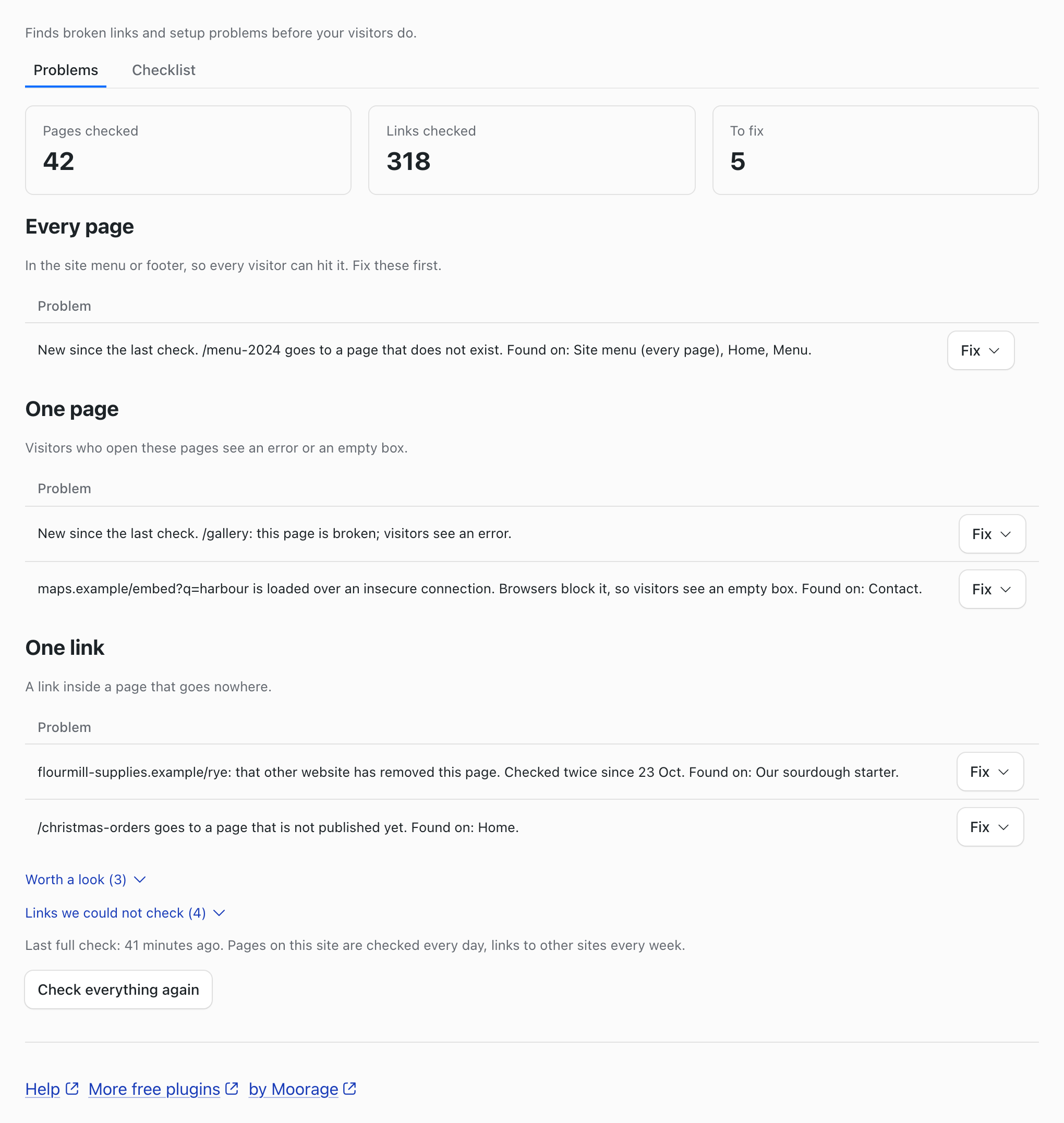
Two folded lists never count. “Worth a look” holds links that work but take a detour. “Links we could not check” holds the ones the plugin could not confirm either way.
Fix a broken link
Every row has a Fix button. What its menu offers depends on the row.
- Send visitors to another page (admins only). For a dead address on your own site, pick the page it should lead to and press Send visitors there. This adds a redirect, so the address works everywhere at once: in your pages, in bookmarks and on Google. You will find it under Redirects in the sidebar.
- Edit, followed by the page’s name. This says which link to change on that page, with a button that opens it in the editor. Select the words that carry the link and use the link button. A broken link in the menu has Change the link in Menus instead.
- Check it again now. Use it after a fix. If the address works, the row goes: “Works now. /blog/christmas-orders is off the list.”
- This is fine, stop checking it. Use it for a link you know is right. It moves to Checklist, Options, “Links you marked as fine”. There, Check it again puts it back.
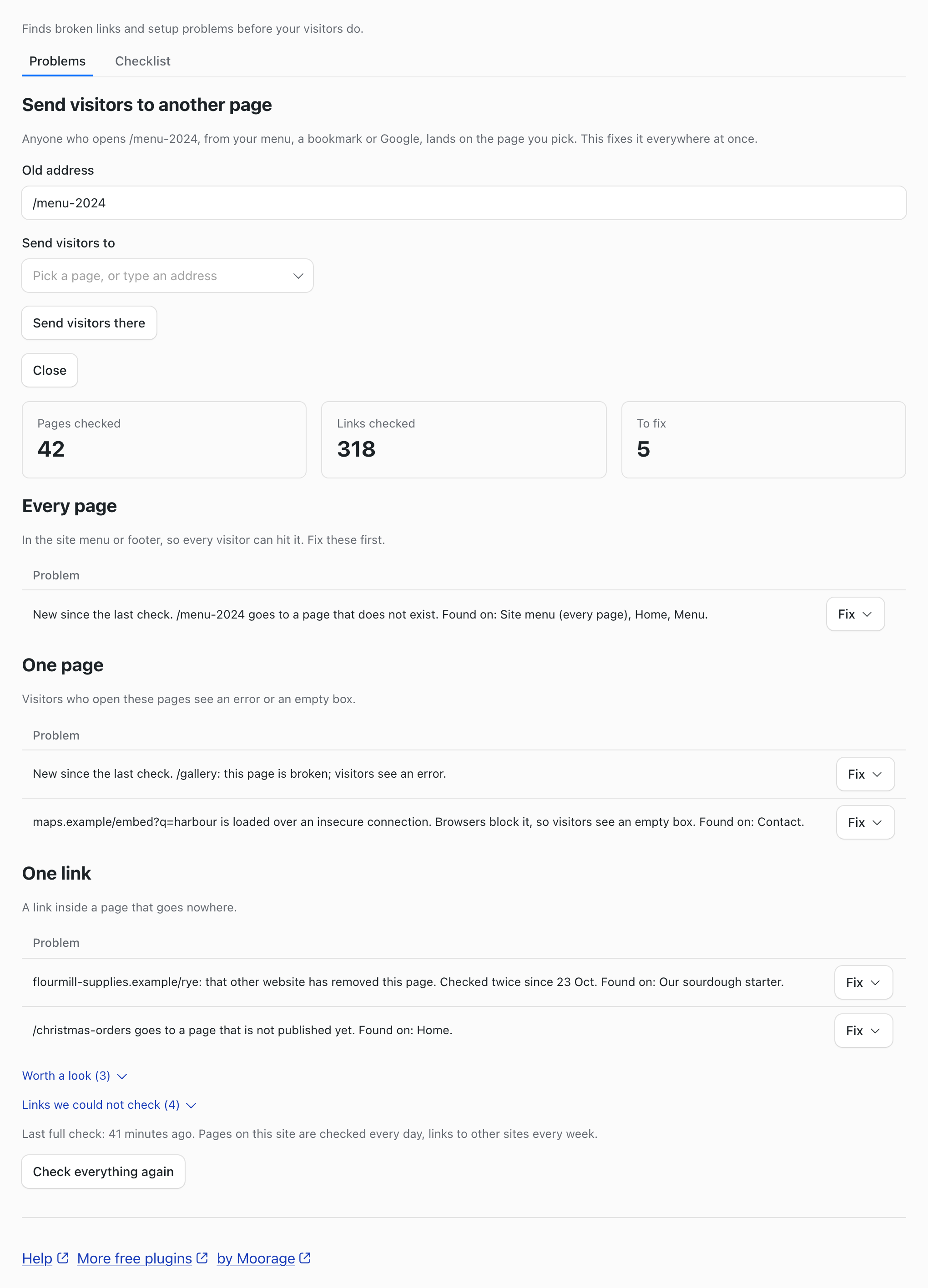
After a redirect, the row moves to “Worth a look”, because the link now takes a detour. To save that step, edit the link to point straight at the new page.
Links to other sites
Links to other websites are checked once a week, three a minute. No website is asked more than once a minute, and each request says it comes from Site Health.
A link counts as broken only when the other website says the page is gone on two checks at least a day apart. So a website that is down for an hour does not send you an alert. After a first failure the link waits, uncounted, for the second check a day later.
Some websites turn away every automatic checker. npm did when we followed this guide, and the plugin names LinkedIn and Instagram as others. Those links go under “Links we could not check” and are never called broken. They are tried again the following week. You can switch off checking links to other sites in Options.
What it does not do
- It does not change the links inside your pages. That would need permission to rewrite your content.
- It gives no score, grade, history or charts, and no CSV export.
- It does not test speed, security headers or certificates.
- Missing alt text and canonical addresses are left to the SEO plugin.
- It cannot read menus, widget areas or page sections directly. Menu and footer links are found on the published home page, so they are checked only once the site is public.
If something goes wrong
A banner says “We cannot open your pages to check them” or “This site is not public yet”. The flag above may be missing, bot protection may block it, or the site’s address may not be its public one yet. Links inside your pages are still checked against your own pages. Anything it could not confirm goes under “Links we could not check”, never as broken.
Scheduled tasks are not “Working”. On Cloudflare, check the Worker has the Cron Trigger shown above.
A link to a site such as LinkedIn is under “Links we could not check”. Open it yourself to see if it works.
Checks or emails use the old address. After changing the site’s address, restart the site. The plugin’s notes say it keeps the address the site had when it started.
Every setting is on the Site Health & Broken Links plugin page. If you moved from WordPress, How to import your WordPress redirects into EmDash brings your old redirects across.
Stuck on a step? Email hello@moorage.dev.
What should we make next?
Tell us the job you would like a plugin to do. We read every answer and use your email only to reply to it; release emails come only if you tick the box.