On this page
The plugin is called Analytics & Cookies. You paste the ID that Google gives you. The banner then asks visitors before anything from Google loads. It’s free, and you don’t need an account. If this site asked you about cookies, that banner was this plugin.
Coming from WordPress?
This replaces an analytics plugin (Site Kit by Google, MonsterInsights) and a cookie plugin (Complianz, CookieYes, Cookie Notice).
- The tools and the banner live in one plugin, so the banner knows what it is holding back. There is no header code to paste into a theme file.
- There are no reports in the admin. You read your numbers in Google Analytics itself.
- There is no full cookie scanner. The plugin holds back only the tools you add in its own boxes. Check what loads looks for the common things that slip past it, such as a second Google tag or a YouTube video.
- It is not a Google-certified consent tool. That matters only if you show Google ads on your own pages.
Install the plugin
This step is for a developer. Ask whoever looks after your site’s code to install the package and add it to astro.config.mjs. It needs EmDash 1.2.0 or newer. It is not in the EmDash registry, because the registry only takes plugins that cannot add scripts to pages.
npm install @moorage/plugin-analytics// astro.config.mjs
import { analyticsPlugin } from "@moorage/plugin-analytics";
import { defineConfig } from "astro/config";
import emdash from "emdash/astro";
export default defineConfig({
integrations: [emdash({ plugins: [analyticsPlugin()] })],
});Everything else happens in the admin.
Add Google Analytics to EmDash
- In the admin sidebar, open Marketing, then Analytics & Cookies. You should see four tabs: Status, Tools, Banner and Advanced.
- Open the Tools tab.
- Find your Measurement ID in Google Analytics. It starts with
G-, for exampleG-TEST123456. Google shows it in the details of your web data stream. - Paste it into Google Analytics: Measurement ID (starts with G-). You can also paste the whole Google tag code, and the plugin picks out the ID.
- Press Save tools.
You should see “Saved. It can take a few minutes to reach visitors.” The Status tab now has a tick and the line “Google Analytics: on. Waits for visitors in Europe and the UK to accept Analytics cookies. Loads for everyone else without asking.”
The other tools work the same way, one box each: Google Tag Manager, Google Ads, Meta Pixel, Microsoft Clarity, HubSpot and Cloudflare Web Analytics. An empty box means that tool is off. If you turn on both Google Analytics and Tag Manager, Status warns that “Google Analytics may be counting twice”. Keep only one, unless your Tag Manager container has no Google Analytics in it.
Who should see the cookie banner?
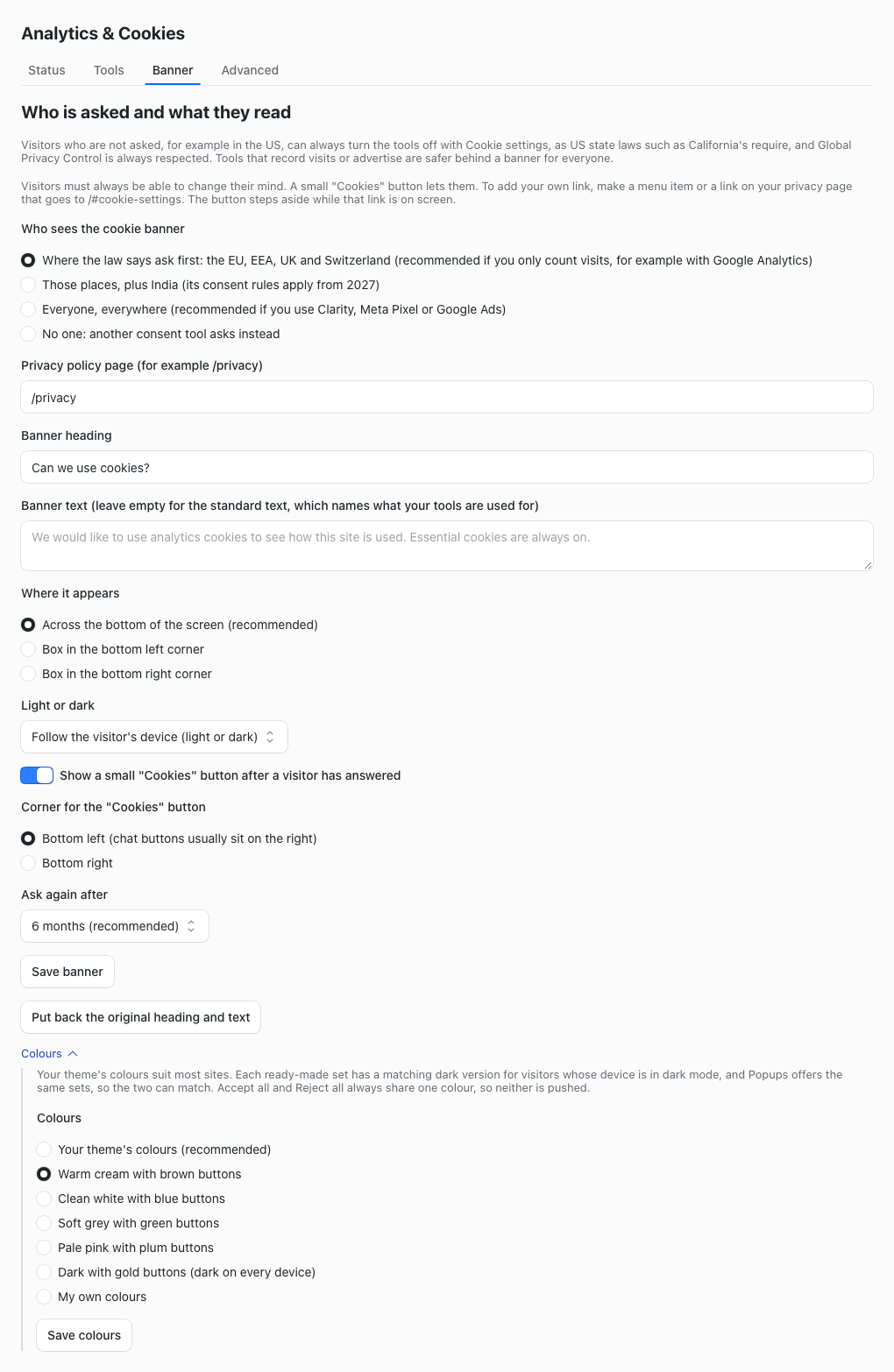
Open the Banner tab. Under Who sees the cookie banner there are four choices.
- Where the law says ask first covers the EU, EEA, UK and Switzerland. This is the default. It suits a site that only counts visits with Google Analytics.
- Everyone, everywhere asks every visitor. Choose it if you use Clarity, Meta Pixel or Google Ads.
- Those places, plus India adds India, whose consent rules apply from 2027.
- No one: another consent tool asks instead is only for sites that already use a different banner.
Next, type your privacy policy page into Privacy policy page, for example /privacy. Then press Save banner. Without that page, Status warns “The banner has no link to your privacy policy”.
Make the banner match your site
On the same tab, under Where it appears, choose Across the bottom of the screen (recommended) or a box in the bottom left or right corner, and pick Light or dark. Corner for the “Cookies” button sets where the small button sits after a visitor answers. The colours are folded away under Colours. Open it and choose one:
- Your theme’s colours (recommended): the banner takes the colours your theme sets for it.
- One of five ready-made sets, such as Warm cream with brown buttons or Soft grey with green buttons. The light ones each have a matching dark version for visitors whose device is in dark mode; Dark with gold buttons is dark on every device. Every one is easy to read. Popups offers the same sets, so the banner and your popups can match.
- My own colours: the background, the text, and one colour for both buttons, with three more for dark mode. Leave the dark mode ones empty to use the same colours.
Then press Save colours. Accept all and Reject all always look the same, so neither answer is pushed.
Your own colours are refused when they are hard to read. With white text on pale grey, it said: “The text is hard to read on that background (contrast 1.4:1, at least 4.5:1 is needed).”
To see the result, press Preview the banner. Your home page opens with the banner showing, wherever you are. Nothing is saved there, and no tool loads.
Check that nothing loads before consent
Use a private window for this. A browser signed in to the admin is never tracked.
If you are outside Europe and the UK and kept the default, you will see no banner. Google Analytics then loads without asking, a moment after the page opens. That is correct, not a fault.
- Open your site in a private window.
- Open your browser’s developer tools: F12 on Windows, or Option + Command + I on a Mac.
- Choose the Network tab.
- Type
googleinto the filter box. - Reload the page. While the banner is showing, you should see nothing from
googletagmanager.com. - Press Accept all. A new line appears:
gtag/js?id=followed by your ID. That is Google Analytics loading.
Cloudflare Web Analytics is the one exception. It sets no cookies, so it starts without asking. There is also a box, Cloudflare Web Analytics: wait for consent anyway, which we haven’t tested.
Read the Status tab
The Status tab is the place to check that everything works. It has three parts, each with its warnings first.
- Tracking ticks each tool you added and says what it waits for. A link next to it opens that tool’s own numbers. With a Google tool, Open Tag Assistant lets you check that Google receives your visits; then look at Reports, Realtime in Google Analytics.
- Cookie consent says who is asked, links your privacy policy, and shows when the last answer came in, such as “Last answer received 12 minutes ago”. Below that are the last 30 days: how many accepted all, rejected all or chose some, with a chart of each day.
- What loads on your site is explained in the next section.
If someone asks you to show that visitors were asked, press Download the consent log (CSV). You get a spreadsheet with one line per answer from the last 12 months: the time, the country, the answer and a random reference. It holds no IP addresses and no names. Only admins see the button, and the link works for ten minutes.
Check what else loads
The plugin only holds back the tools in its own boxes. Code pasted in somewhere else, such as a Google tag in an HTML block, loads before anyone is asked. So do some embeds, such as a YouTube video or a Google map.
- On the Status tab, under What loads on your site, press Check what loads.
- Wait a few seconds. It looks at your home page and up to four more, as a visitor gets them.
- Read what it found. Each finding comes with a plain fix, for example to remove the pasted code, or to use youtube-nocookie.com for a video.
If nothing is found, it says “Nothing from the list loads outside this plugin on these pages.” It knows the common tools and embeds, not every one there is. A page changed in the last few minutes may still show its older, cached copy, so press Check again a little later.
Let visitors change their mind
After a visitor answers, a small Cookies button sits in the bottom left corner, or the one you chose. It opens a panel with a row for Essential (always on) and one for Analytics or Marketing when you use a tool of that kind. Each row names the tools it covers. If a visitor takes their consent back, the page reloads without those tools.
There are settings to turn the button off, or move it to the right if a chat button sits there. A “Cookie settings” link in your footer helps too. You add it in the admin, with no code:
- Open Menus and edit your footer menu.
- Click Add Custom Link.
- Type “Cookie settings” in Label.
- In URL, type
/#cookie-settings, with a slash in front. The field refuses an address that starts with#. - Click Add.
Clicking the link now opens the cookie choices on the page the visitor is on. A link to /#cookie-settings on your privacy page works the same way. While such a link is on screen, the small Cookies button steps aside. A theme whose footer link has a data-cookie-settings attribute keeps working.
Visitors who were never asked can use the same button or link to say no later.
Some browsers send a signal called Global Privacy Control. It means “do not share my data”. The plugin always respects it, so Marketing tools never load, whatever the visitor clicks. The panel tells them: “Your browser asks sites not to share your data (Global Privacy Control), so Marketing stays off.”
If you also plan a popup, see How to add an EmDash popup, top bar or sign-up box. The Popups plugin waits while this banner is waiting for an answer.
What it does not do
This guide is not legal advice. Installing the plugin does not settle what the law asks of your site. You still describe in your privacy policy what your tools do with the data.
It has no IAB TCF support and is not a Google-certified consent tool. If you show Google ads on your own pages, you need a certified one.
The plugin’s notes say it tells Google Tag Manager the visitor’s answer. The tags inside your container must be set up to respect that answer. The plugin can’t do it for you.
It shows no visitor reports, and it is not a full cookie scanner. The banner text is in one language.
If something goes wrong
I accepted, but my visit is not in Google Analytics. Your browser is signed in to the admin, so it is never tracked. Test in a private window.
I see no banner. You are probably outside the places you chose to ask. Press Preview the banner to see it, or choose Everyone, everywhere.
I changed a setting and the site still shows the old one. The admin warns that changes can take a few minutes to reach visitors. Wait, then reload.
“Nothing was saved.” Read the message at the top of the tab. It names the box to fix. For example, a Tag Manager ID in the wrong box gets: “That is a Google Tag Manager ID (GTM-). Put it in the Google Tag Manager box instead.”
Every setting is described on the Analytics & Cookies plugin page.
Stuck on a step? Email hello@moorage.dev.
What should we make next?
Tell us the job you would like a plugin to do. We read every answer and use your email only to reply to it; release emails come only if you tick the box.